
Better Proposals tutorial
Freelancers and small agencies know the frustration: you spend hours crafting a proposal in Word or PDF only for it to land unopened in a busy client’s inbox. Dull, static proposals often don’t get the attention (or the responses) they deserve. For busy freelancers, this Better Proposals tutorial will change the way you send proposals — making each one more engaging and harder for clients to ignore.
This Better Proposals tutorial promises a fix. Instead of sending a boring PDF attachment, you’ll create interactive, on-brand proposals that grab attention, track client engagement, and close deals faster. Follow these steps to set up your Better Proposals account, pick a template, and customize each proposal for your client’s needs. You’ll add your branding and logo, insert interactive pricing tables, enable digital signatures, and then send and track the proposal. By the end of this guide, you’ll be confidently sending polished project quotes, service packages, onboarding proposals, and creative marketing proposals that win clients. Try Better Proposals Free
Better Proposals tutorial: Platform Overview
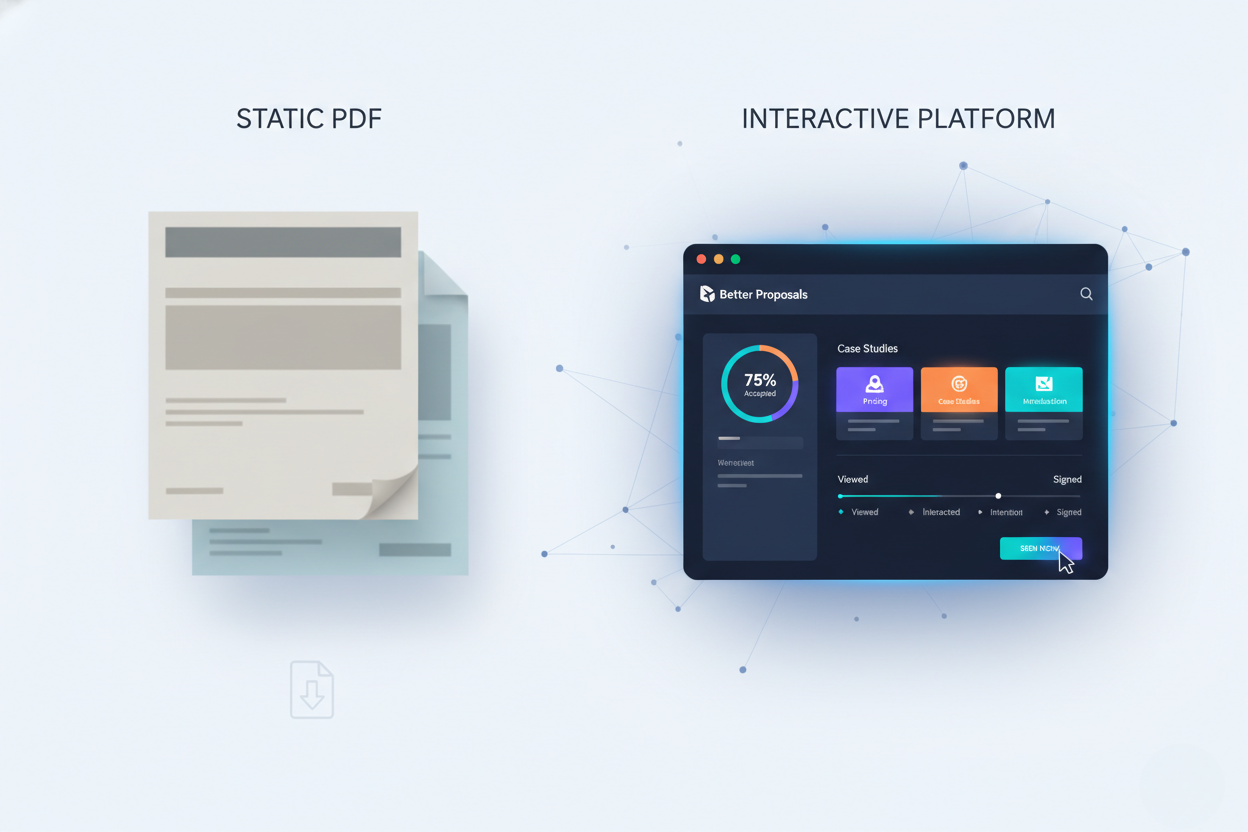
Better Proposals is an online proposal builder designed for freelancers, small digital agencies, consultants, and other service businesses. It replaces the old-school process of sending Word or PDF attachments with sleek, web-based proposals. You simply pick a template and fill it in – the platform automatically handles the formatting. Your prospects open the proposal via a link in their browser (no clunky attachments), and it looks great on any device.
With Better Proposals you can: – Use professional templates: Start with one of 260+ customizable designs (proposals, quotes, brochures, contracts, etc.) to fit your project type. Templates cover everything from project quotes and service packages to onboarding documents and marketing proposals.
– Customize and brand easily: Edit text and sections in a Google Docs–style editor. Add your logo, set your brand colors and fonts, and the system makes it look polished without design skills.
– Insert interactive elements: Add pricing tables, images, and even video. Clients can click options or ask questions directly in the proposal.
– Enable e-signatures and forms: Include legally binding signature fields so clients can sign instantly on any device. You can also attach questionnaires or onboarding forms to streamline client intake after they sign.
– Track and automate follow-ups: Get real-time notifications when a prospect opens the proposal and see detailed analytics (which pages they viewed, how long, etc.). Then use built-in follow-up emails to gently nudge them if they haven’t responded.
In short, Better Proposals helps you send polished, interactive proposals that convert better than flat PDFs. By automating design, signing, and follow-ups, it saves you time and helps close deals faster.
Start Your Free Better Proposals Trial Here
By the way, If you want a broader view of the landscape, I’ve also put together a complete 2026 guide to digital tools covering AI, CRM, productivity platforms, automation tools and more.
Step-by-Step Better Proposals tutorial
Follow this step-by-step Better Proposals tutorial to see exactly how to set up and send your first personalized proposal:
- Create Your Account: Visit BetterProposals.io and click “Try it Free” to start a free 14-day trial (no credit card required). Enter your name, email, and company information to create your account. You’ll usually need to verify your email by clicking a link. Once logged in, fill out your business profile with your company name and details. (Pro tip: upload your logo and set your brand colors now so every proposal starts on-brand.)
- Choose a Template: From your dashboard, select the document type (Proposal, Quote, Onboarding, etc.) and browse the template library. Better Proposals offers hundreds of templates to cover different scenarios – for example, project quotes, service packages, contracts, marketing proposals, and even onboarding documents. Preview a few in your industry or style, then click to use one that fits your needs. Each template is fully editable, so you’re just choosing the layout and initial copy. You can also start from a blank template, but using a design saves time.
Browse 260+ templates here - Customize Your Content: Replace the placeholder text with your own proposal content. Write a personalized introduction mentioning the client’s name and project, then explain your approach and services. The editor is WYSIWYG (like Google Docs) so just click and type. You can add or remove sections as needed – for example, include an “About Me” section or a case study if it strengthens your pitch. Use bullet lists for clarity, short paragraphs, and client-focused language. If you have details specific to the client (like scope or deadlines), include those as well. You can even collaborate with colleagues in real time if needed (the editor updates live).
- Add Branding and Logos: To make your proposal look professional, upload your logo and set your brand colors. In your Better Proposals settings (or within the proposal editor), find the Branding options to add your logo image and pick your main color. This applies your branding across fonts, headings, and highlights. A consistent look and feel makes a strong impression. These branding settings will apply to all your proposals automatically – you set it once, and every new document uses the same branding. You can also upload a header image or footer if desired, but keep it simple to highlight your content.
- Insert Pricing Tables: If you’re quoting products or services, add a pricing table to your proposal. Choose the pricing block and list your items, packages, or services along with prices. You can create multiple tables – for example, one table for a flat project quote and another for monthly service packages. Label each row clearly (e.g. “Website Design – One-Time Fee”) and include any quantities or optional add-ons. The table is interactive: clients can tick boxes for optional items and see the totals update in real time. You can also apply taxes or discounts as needed.
- Enable E-signatures: Make it easy for clients to accept your proposal by adding signature fields. At the end of your proposal, drag in a signature block (and your signature, if needed) from the toolbar. Better Proposals uses secure digital signatures, so there’s no need to print anything. These e-signatures are legally binding (just like DocuSign), and the system will timestamp and record the signer’s name automatically. You can also include a checkbox or text field for the client to confirm terms or add notes if needed. This step turns your proposal into a contract that clients can sign instantly.
Enable instant e-signatures with Better Proposals - Send and Track Your Proposal: When your draft is ready, hit “Send” and enter the client’s email address. Better Proposals will craft a clean email with a link to view the proposal in their browser. You can customize the email’s subject and add a personal message if you like. Once sent, you’ll see the status in your dashboard change from draft to sent. The moment the client opens the link, Better Proposals notifies you. Check the analytics to see how long they spend on each section. If they haven’t responded after a few days, use the follow-up feature to send a gentle reminder. (You can also schedule automatic reminders in advance.)
👉 Want to follow these steps live? Start your free Better Proposals account now

Better Proposals tutorial: Tips & Best Practices
In this Better Proposals tutorial, we emphasize personalization and proactive follow-ups. Keep these tips in mind to engage prospects and close more deals:
- Personalize each proposal: Tailor every proposal to the client. Include their name, company, and project details in the introduction. Reference specific requirements or goals to show you paid attention.
- Add a video introduction: A short (1–2 minute) video greeting can make your proposal stand out. Record a quick introduction and embed it in your cover page. This personal touch builds rapport by putting a face to the proposal.
- Automate follow-ups: Let the system stay on top of replies. If a client hasn’t viewed or signed after a few days, trigger an automatic reminder. This keeps deals moving without extra effort.
- Keep it concise and clear: Even though your proposal is online, write as if speaking directly to the client. Use headings, bullet points, and short paragraphs to break up text. Clearly highlight pricing, deliverables, and next steps.
- Leverage analytics: Watch how clients interact with your proposal. Better Proposals notifies you when it’s opened and shows which sections they viewed and for how long. Use these insights to focus your follow-ups on what matters to them.
- Reuse and refine templates: After finishing a proposal, save it for future use. Better Proposals lets you create custom templates or content blocks. For similar clients, clone your best proposal and tweak it. This cuts creation time and ensures consistency.
Better Proposals tutorial: Common Mistakes to Avoid
- Sending a plain PDF or Word doc: Don’t revert to attachments. Always send the proposal link to capture analytics and e-signature.
- Over-designing your layout: It’s tempting to tweak every detail, but too many fonts or colors can overwhelm. The templates are already polished – keep the style clean so your message shines.
- Ignoring the analytics: Don’t send and forget. Check the stats – if a client opened the proposal multiple times, reach out. If they never opened it, consider following up or adjusting your approach.
- Generic, impersonal proposals: Avoid copy-paste content. Clients want a solution made for them, not a boilerplate pitch. Personalize introductions and details for each client.
- Including too much information: Don’t overload the proposal with irrelevant details. Focus on the client’s problem, your solution, and the clear next steps.
- Typos and errors: Always proofread before sending. Spelling mistakes or broken links undermine your professionalism. A polished proposal reflects your attention to detail.
- Missing a clear call-to-action: Always end with a clear next step. Tell the client exactly how to accept or proceed (for example, sign below or schedule a call).
Conclusion and Next Steps
Your proposals are now transformed. By following this Better Proposals tutorial, you’ve switched from static PDFs to professional, interactive proposals that clients can’t ignore. Better Proposals handles the design, signing, and follow-up for you, so you can focus on solving problems for your clients instead of wrestling with Word or chasing emails.
The result? Faster responses and more signed deals. As a freelancer or small agency, closing clients quickly means you can grow your business without as much hassle. Don’t let another opportunity slip through a junk mail folder. Your new, on-brand proposals will impress prospects from the very first click.
Think of this Better Proposals tutorial as a blueprint for more effective proposals — bookmark it to revisit anytime.
Ready to get started? Head to BetterProposals.io and launch your free trial today (no credit card required). With just a few clicks you’ll be ahead of competitors still sending old-school PDFs. Try Better Proposals Free.
want to read more about Better Proposals? Better Proposals Review 2026: A Freelancer’s Secret to Closing More Clients