
How to Use SaneBox to Organize and Clean Your Inbox in 2026
Email overload is overwhelming, but it doesn’t have to be that way. Modern life can dump dozens or hundreds of messages into your inbox every day. This constant flow of mail can sap your focus and make even simple tasks feel urgent. SaneBox is designed to fix that. In this SaneBox tutorial, we’ll show you exactly how to tame your inbox so you see only what’s important. You’ll learn how SaneBox’s smart AI, filters, and rules work behind the scenes to save you time and reduce email stress. By the end of this guide, you’ll know how to set up SaneBox, customize its features, and finally enjoy an organized, calm inbox.
Try SaneBox here and let the AI organize your inbox automatically.
What This SaneBox Tutorial Will Teach You
In this section, you’ll find a clear outline of everything covered by this SaneBox tutorial. Each bullet below is a key lesson that you will learn:
- Practical steps to set up SaneBox: How to create an account, connect your inbox, and allow SaneBox to scan your email so it can start organizing right away. For example, this SaneBox tutorial guides you through these steps so you can focus on what matters.
- How AI-powered sorting works: How SaneBox uses artificial intelligence and smart folders (like SaneLater and SaneNews) to prioritize your incoming messages automatically. As this SaneBox tutorial highlights in examples, it learns who and what is important to you.
- Automating your inbox: Techniques for automating email with custom rules, moving filters, and snooze options to reduce manual effort. As this SaneBox tutorial demonstrates, these features let you cut through clutter effortlessly.
- Deep dive into core features: A detailed look at SaneBox’s main tools (SaneLater, SaneNews, SaneBlackHole, etc.) so you understand exactly how each one works. As this SaneBox tutorial explains, these features give you control over different types of mail.
- Long-term organization tips: Key habits and strategies for staying organized with SaneBox over time and avoiding common mistakes.
- Who benefits most: Real-life examples of busy professionals and anyone drowning in email who will transform their workflow with this SaneBox tutorial.
Why Email Overload Is a Real Productivity Killer
Psychologically, each email interruption forces you to refocus, costing minutes every time. When your attention is constantly fragmented by new messages, even simple work takes much longer. Endless messages contribute to stress because you feel behind and reactive. For instance, if you spend just one minute on 60 unnecessary emails per day, that’s an hour each day wasted. SaneBox helps break this cycle. By filtering low-priority mail into separate folders and batch-processing it later, you reduce task-switching. This SaneBox tutorial emphasizes limiting interruptions so you can work with a clear mind. In practice, you’ll spend more time on high-value tasks and far less time buried in your inbox.
What Is SaneBox and How It Works
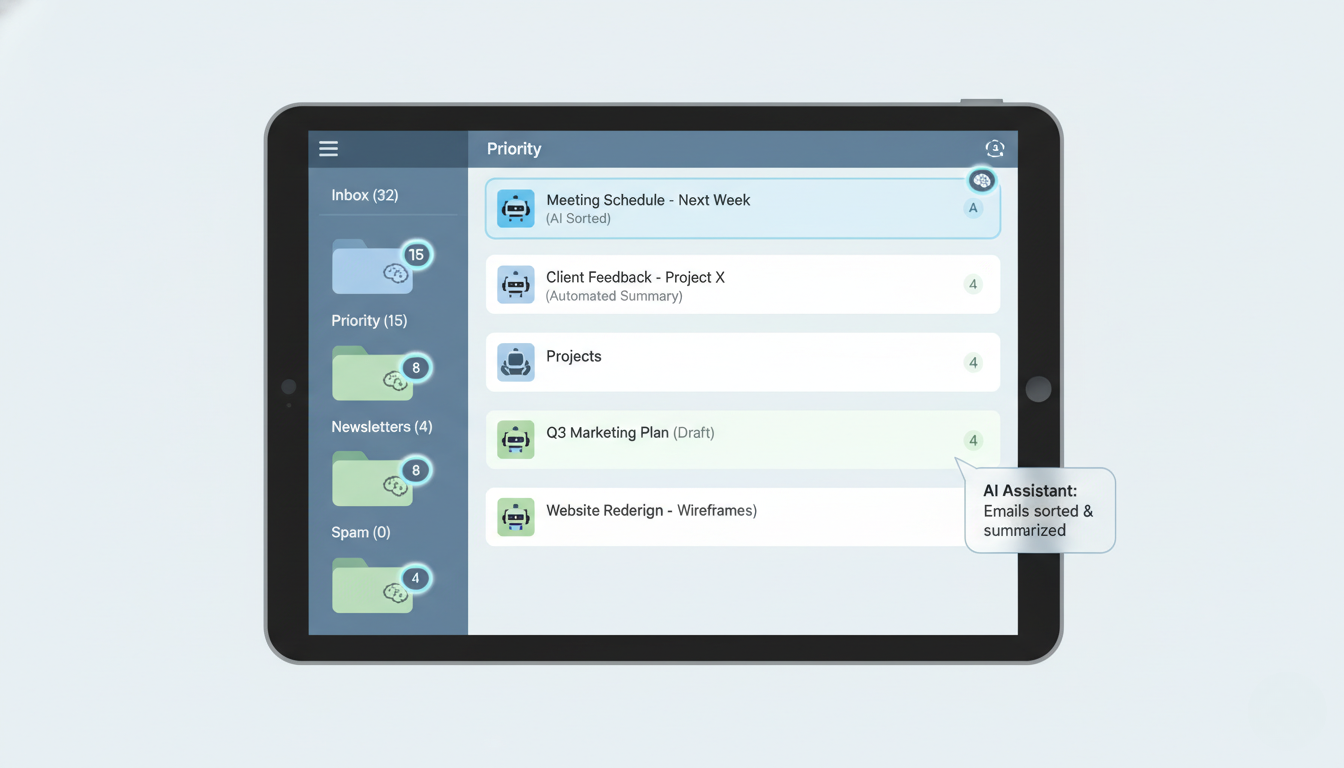
SaneBox is an AI-powered email organizer that lives between you and your inbox. It analyzes who you email and what you read to learn which messages matter. SaneBox automatically sorts each incoming email into different smart folders. For example, SaneLater holds less-urgent mail and SaneNews collects newsletters. You don’t have to create complicated filters – SaneBox learns your preferences over time. In this way, SaneBox only shows you top-priority mail in your main inbox. The underlying concept is that AI and simple training do the sorting work so you don’t have to. This section explains SaneBox’s core idea: using smart automation to keep you focused on what’s truly important.
Start your SaneBox trial here and let it sort your inbox automatically.
Setting Up Your SaneBox Account (Tutorial Section)
Let’s get started with setting up SaneBox. In this SaneBox tutorial section, we break down each step from creating an account to the initial sync of your inbox.
Step 1 — Creating Your Account
Go to the SaneBox signup page and start the process. Enter an email address you actively use and choose a password or single sign-on option. You’ll receive a confirmation message in your email – click the link in that message to finish creating your SaneBox account. Now your SaneBox account is linked to that email address. This is exactly what the SaneBox tutorial shows for beginning the setup.
Click here to create your SaneBox account and follow along step-by-step.
Step 2 — Connecting Your Email Provider
Next, tell SaneBox which inbox to organize. Choose your email provider (e.g. Gmail, Outlook) or enter your email address to connect it. You will need to log in to your email account and grant SaneBox access. This usually involves allowing SaneBox to read your email headers (sender, subject, date, etc.) and move messages into folders on your behalf. For instance, if you accidentally deny access, the connection won’t complete. This is a crucial step described in the SaneBox tutorial, because without granting permission, SaneBox can’t do any sorting.
Step 3 — Authorizing SaneBox AI Scanning
Click the button to allow SaneBox to scan your email. SaneBox is clear about privacy: it only reads email headers (sender, subject, metadata) and never stores or opens your private message content. The scanning happens on SaneBox’s servers, so it doesn’t slow down your computer or phone. Complete this authorization to enable the AI sorting. As this SaneBox tutorial explains, this process is secure and ensures the system has the data it needs to start organizing your mail.
Step 4 — Allowing Folder Creation
Now SaneBox needs permission to create its special folders in your mailbox (like SaneLater, SaneNews, etc.). Approve the prompts to let it do this. Without those folders, SaneBox can’t filter incoming messages. After granting access, you should see new SaneBox folders appear in your email client. For example, you might see a “SaneLater” folder. This step is covered in detail by the SaneBox tutorial.
Step 5 — First-Time Inbox Sync
Finally, trigger the initial sync. SaneBox will now sort your existing emails into the new folders based on its AI analysis. This may happen automatically after setup, or you might click a “Start Sync” or refresh button. Once the sync finishes, check your folders: you’ll find older messages already distributed (priority mail in your main inbox, others in SaneLater, SaneNews, etc.). You’ve followed the steps of this SaneBox tutorial to complete the setup, and your inbox is now organized.

Understanding SaneBox Smart Folders (Main Teaching Section)
SaneBox uses special folders to sort your email into categories automatically. Each folder serves a purpose: some hold newsletters, others track replies or snoozed mail. By the end of this section, you’ll understand how each smart folder works and why it helps keep your inbox clean.
SaneLater — Your Priority Email Filter
SaneLater is for emails that can wait. When SaneBox thinks a message is not urgent, it moves it to SaneLater so it won’t clutter your main inbox. Over time, SaneBox learns from what you do: if you drag a message from SaneLater back to your inbox (or vice versa), SaneBox takes note and adjusts. In practice, SaneLater means you read only the highest-priority mail in your inbox, and deal with everything else later on your own schedule. For example, if someone emails you a lengthy report, SaneBox might move it to SaneLater instead of interrupting your day now. This principle keeps you productive.
SaneNews — The Newsletter Manager You Didn’t Know You Needed
SaneNews holds your newsletters and mailing list subscriptions. Instead of burying your inbox with subscriptions, SaneBox groups all newsletters into SaneNews. Then you can read them in one batch when it’s convenient. If a newsletter is no longer useful, unsubscribe or drag it out of SaneNews. Using SaneNews frees you from seeing bulk mail every day but still lets you catch up on topics you care about. This SaneBox tutorial suggests doing exactly that: batch process low-priority mail so it’s under control.
SaneBlackHole — Unsubscribe Forever
SaneBlackHole permanently blocks senders you never want to hear from again. Drag any unwanted email into this folder, and SaneBox will drop all future messages from that sender. This is more powerful than just deleting or archiving; it acts like a permanent unsubscribe. Over time, your junk mail will disappear. For instance, place a persistent marketing sender in SaneBlackHole and those emails will vanish automatically. This tool ensures only the email you want stays in sight.
SaneNoReply
SaneNoReply is like a reminder for emails you’ve sent but not yet received replies. When you email someone important and don’t get a response by a certain time, SaneBox brings the original message back to your inbox. This way you won’t lose track of conversations that need follow-up. You don’t have to remember to check manually—SaneBox handles it behind the scenes. This ensures you never forget an important request or pending task, so nothing slips through the cracks.
SaneSnooze
SaneSnooze lets you postpone emails until later. If you get a message you can’t act on right now, snooze it until a specific date or time. SaneBox will hide the email until the chosen time, then return it to your inbox (unread). For example, if you receive a meeting request late on Friday, you can snooze it until Monday morning so it reappears when you’re fresh. This keeps your current inbox focused on what you can do immediately, while reminding you of other tasks exactly when you need to handle them.
How SaneBox Uses AI to Save Hours Every Week
SaneBox’s AI analyzes your email habits—who you email and what you read—to predict importance. It learns patterns: perhaps you always open messages from your boss immediately, or you ignore daily newsletters. Using this behavior data, SaneBox sorts incoming mail automatically. For example, if SaneBox learns that you never reply to a certain newsletter, it will send it to SaneNews. If it notices emails from a client usually need urgent action, it keeps those in your main inbox. Each time you correct SaneBox (e.g. moving an email from SaneLater to inbox), you train the AI further.
In real-world terms, this means saving time. All of these examples show how SaneBox’s filtering can save hours every week. If an average person gets 100 new emails a day and can cut that down to 20 that need immediate attention, SaneBox may save them half an hour or more per day. Over the course of a week, that’s several extra hours for focused work. You can think of it like having a personal assistant that reads and triages your mail. The SaneBox tutorial demonstrates that automating email filtering in this way frees up valuable time. Many users report recouping at least 1–2 hours daily by letting SaneBox handle the sorting. This is how SaneBox provides tangible time savings for busy professionals, freelancers, and managers alike.
Automating Your Inbox With Custom Rules
Beyond the built-in folders, SaneBox lets you create custom automation rules to fit your workflow. You can set moving rules so that certain emails always go to a specific folder (for example, client invoices to SaneFolder “Finance”). Use keyword rules to filter by subject or content (e.g. any email with “Support” goes into SaneFolder “Ticket”). Define sender rules for VIPs (perhaps always keeping your CEO’s emails in your main inbox).
You can also set up folder exceptions so that some senders skip SaneBox and go straight to your main inbox (for example, your spouse or boss). And Snooze automation lets you automatically defer non-urgent mail. For instance, a rule might auto-snooze any email marked “FYI” until later.
All of these customizations combine with SaneBox’s AI. The SaneBox tutorial recommends adding one rule at a time and testing it, so you see exactly how each change affects your inbox. With these automations in place, your routine sorting happens automatically: work-related lists land where you expect them, newsletters stay in one folder, and important contacts always make the priority list. Over time, these rules save you hours by doing behind-the-scenes organization.
Integrations and Advanced Features
SaneBox also connects with your other tools and adds advanced options to extend its power. For example, CRM integrations let you send certain emails directly into systems like Salesforce or HubSpot. SaneBox can auto-forward or tag these messages so client communications are logged automatically.
You can also integrate cloud storage: for instance, automatically send large attachments from your email into Dropbox or Google Drive, freeing up inbox space. On supported plans, you might link SaneBox to productivity services (Zapier, IFTTT) to build custom email workflows, such as sending attachments to Slack or archiving certain reports.
For teams and businesses, SaneBox offers shared inbox tools. You could set a shared project inbox where everyone’s SaneBox filters apply the same way, keeping the team organized. The system is multi-device, meaning your folders sync on all platforms. Whether you check mail on phone or desktop, SaneBox stays aligned across your devices without extra apps.
Exploring these features can multiply the time you save. The SaneBox tutorial suggests trying one integration or advanced option at a time so you see the immediate impact. With each connected tool or automated flow, you reclaim more hours from mundane tasks.

Tips for Staying Organized Long-Term With SaneBox
Maintaining a clean inbox isn’t a one-time task. This SaneBox tutorial offers practical tips to keep your email organized for the long haul. Implement these habits and SaneBox will continue to work seamlessly over time:
- Check SaneLater Daily: Make a habit of reviewing your SaneLater folder each day. The SaneBox tutorial suggests treating SaneLater like a secondary inbox and clearing out anything important immediately. Over time, this prevents urgent emails from being buried.
- Train SaneBox Regularly: Whenever you find an email in the wrong folder, move it where it belongs. As this SaneBox tutorial highlights, each move teaches SaneBox your preferences, making its future sorting smarter and more accurate.
- Use SaneBlackHole for Good: When you get emails you never want, drag them into SaneBlackHole. The SaneBox tutorial emphasizes that this effectively unsubscribes you from the source, stopping future messages from cluttering your mail.
- Batch-Process Newsletters: Set aside time to read your SaneNews folder all at once, rather than checking constantly. Unsubscribe from newsletters you no longer find useful so SaneNews stays manageable.
- Refine Your Rules Occasionally: Your needs change, so revisit any filters you’ve set. The SaneBox tutorial recommends checking your rules and keywords periodically. Adjust or delete outdated rules to keep your inbox optimized.
- Use SaneSnooze Strategically: Snooze emails that aren’t urgent until later. For example, snooze a non-urgent request until a day you can actually address it. This keeps distractions out of your inbox now and reminds you at the right time.
- Integrate Slowly: Don’t try every feature at once. As this SaneBox tutorial recommends, add integrations and rules one at a time. This helps you see how each change affects your inbox and avoids confusion.
- Stay Patient and Consistent: It takes time for SaneBox to learn and for habits to form. Consistency is key. Stick with these practices and you’ll see your email habits improve, making your inbox easier to maintain.
Who This SaneBox Tutorial Is Perfect For
SaneBox works for anyone looking to reclaim time from email. This SaneBox tutorial is especially useful for:
- Professionals: People in fast-paced roles who deal with dozens of emails daily and need a system to separate urgent requests from background noise.
- Busy Managers: Project leads and team managers who juggle multiple projects. It shows them how to filter the noise so they can focus on deadlines and team updates without distraction.
- Freelancers: Individuals balancing client inquiries, proposals, and promos. They can use SaneBox to keep client emails at the top of the inbox.
- Startup Founders: Entrepreneurs who must not miss investor or partner emails. SaneBox helps highlight those key opportunities and routes lesser messages aside.
- Anyone Overwhelmed by Email: If your inbox feels like a flood, this SaneBox tutorial provides practical steps to turn that chaos into control. It offers a roadmap to get your email stress under control.
Common Mistakes Users Make With SaneBox
Avoid these pitfalls to get the most from SaneBox:
- Ignoring SaneLater: Don’t treat SaneLater as if it were Spam. It may hold important “read later” emails. The SaneBox tutorial warns that skipping it can cause you to miss valuable messages. Check it regularly instead of letting it pile up.
- Not Training the System: If you never move mis-sorted emails, the AI has no way to learn. As this SaneBox tutorial advises, drag any out-of-place email to the correct folder. That feedback loop is how SaneBox improves.
- Deleting Newsletters Instead of Unsubscribing: Simply deleting or archiving newsletters still allows new ones to come. The SaneBox tutorial notes you should use SaneBlackHole instead. That way SaneBox permanently blocks unwanted senders, stopping the flow.
- Overly Broad Rules: Custom filters that catch too much mail can hide important messages. The SaneBox tutorial shows that overly general rules may mislabel vital emails. Double-check your keyword and moving rules to make sure they’re not too aggressive.
- Skipping Permissions: Forgetting to allow SaneBox to create folders or scan your inbox makes it useless. Always grant full access during setup. Without it, none of SaneBox’s sorting works.
- Snoozing Everything: Snooze is great for delaying an email, but if you snooze too many messages far into the future, tasks get forgotten. Use SaneSnooze only for truly time-sensitive delays, not as a general catch-all.
Ready to clean your inbox?
Start your SaneBox trial here and experience inbox freedom in minutes.
Final Thoughts — Why This SaneBox Tutorial Will Change the Way You Email Forever
By now, this SaneBox tutorial has mapped out the journey to a truly organized inbox. You’ve seen how smart sorting, custom rules, and automation all come together to give you back time and clarity. When you put these steps into action, you’ll experience less stress and a renewed sense of control over your email. Imagine starting each day with a clear inbox—this SaneBox tutorial has shown that it’s possible. You deserve an inbox that works for you, not against you. Try it: sign up and see how quickly SaneBox can filter your messages so you only deal with what’s important. You now know how to get there and can start right away.
SaneBox is ready to do the heavy lifting. All that’s left is for you to give it a try. Create your account and let SaneBox start sorting your mail immediately. Dive in now, and you’ll notice the difference almost immediately. Feel the relief of fewer distractions, and enjoy being more productive with your day. Get started today – enable SaneBox on your inbox and follow the steps from this SaneBox tutorial. A calmer, cleaner inbox is within reach, so take the next step and try SaneBox now. Use the tips from this SaneBox tutorial every day to keep it that way.
Try SaneBox today and let smart automation take over your email forever.
Want to read more about SaneBox? SaneBox review