
Taskade tutorial — How to Manage Teams Effectively Using Taskade in 2026
What This Taskade tutorial Covers
In this tutorial, you will learn how to manage team projects and tasks using Taskade’s features. The Taskade tutorial walks you through everything from creating workspaces to assigning tasks and collaborating. This tutorial is based on hands-on experience with Taskade, showing you how to set up workspaces, invite team members, and organize folders. By following the tutorial, you will have a clear plan to stay organized, communicate seamlessly, and keep your team aligned. You will see examples and step-by-step actions so you can get practical experience with Taskade.
If you want to try Taskade while following this guide, you can create your free account here.
Why Team Management Needs a Modern Tool (Taskade tutorial context)
Managing teams has become more complex than ever. When your team is remote or scattered across locations, communication gaps and overlapping tools can slow progress. Without a modern solution, tasks and feedback get lost in a jumble of email threads and chat messages. In this tutorial context, we discuss how Taskade solves these challenges. This tutorial highlights the need for a single workspace where your team can see their tasks, updates, and conversations all in one place. The Taskade tutorial approach means no more toggling between random to-do lists, calendars, and chat apps. By following the Taskade tutorial, you can break down silos and keep your team on track. A modern tool like Taskade avoids disorganized spreadsheets and scattered notes. This tutorial shows how clarity and structure reduce overload and confusion.
Getting Started — Taskade tutorial for Beginners
Before you continue, open Taskade in a new tab so you can follow each step hands-on. Click here to start with a free plan.
Creating Your First Workspace
First, open Taskade and create your first workspace. A workspace is a top-level container where all your projects and tasks will live. Click the plus icon or “New Workspace”, then give it a name, color, and logo that represents your team or project. In this tutorial, we start by creating a workspace for your team. For example, you might name it “Marketing Team” or “Client Projects”. This Taskade tutorial step ensures your work is organized from the start. Follow this tutorial step-by-step to ensure a smooth start.
Setting Up Folders and Projects
Next, organize work by adding folders and projects inside your workspace. Folders help separate different streams of work, such as projects, teams, or clients. Click “New Folder”, pick a name and icon (like an emoji). For example, you could have a folder for each client or each department. Inside a folder, create new projects: these are your actual to-do lists or boards. Each project can use list, board, mind map, or chart views. In this tutorial, we’ll create a sample project for a campaign. The Taskade tutorial steps then let you add tasks, assign due dates, and track progress. Folders in Taskade keep tasks organized so nothing gets lost.
Sharing and Permissions
Now it’s time to invite team members and set permissions. Click the Share or Invite button to add people by email or link. The tutorial explains that sharing a workspace does not automatically share all folders inside. Make sure to share each folder or project with your team so they can see your tasks. You can specify view or edit permissions for each person. By following this Taskade tutorial step, every teammate will have access to the right projects and tasks. The tutorial helps you ensure everyone on the team is invited and synced.
By the way, If you want a broader view of the landscape, I’ve also put together a complete 2026 guide to digital tools covering AI, CRM, productivity platforms, automation tools and more.

Building Team Workflows — A Practical Taskade tutorial
To-Do Lists & Project Boards
Taskade’s list view is a powerful outline that lets you break work into tasks and subtasks. Start by adding tasks with checkboxes, and indent any item to create a sub-task or section. You will find it easy to see project structure in this tutorial style view. Each task can have a due date, priority, or assigned person. If you need a Kanban board, switch to Board View: columns like “To Do, In Progress, Done” appear. Drag tasks across columns to track progress visually. This Taskade tutorial shows you that your team can manage to-dos in either view. It’s a flexible way to capture project details and track action items. Following the tutorial approach, you can assign tasks and set reminders so your team stays on schedule.
Mind Maps and Workflow Diagrams
Taskade’s mind map and flowchart views let you visualize plans and ideas. Mind maps start with a central idea: click the middle node and add branches for sub-topics or tasks. You can drag and drop nodes to reorganize or link related topics. In this tutorial section, try using a mind map to brainstorm project steps or content ideas with your team. You can even attach files or notes to each node. For process planning, use the built-in flowchart tool: type a description and let AI turn it into a diagram. The Taskade tutorial illustrates that these visual workflows make complex projects easy to understand. Tag nodes with #hashtags to filter, and collaborate on the map in real time.
Real-Time Collaboration and Chat Tools
Taskade projects are designed for live collaboration. Every project includes a built-in chat on the right side: you can start a team chat or private chat with members of the project. Use @mentions to call attention, share files, or even record screencasts in conversation. Team members can also comment on tasks to give feedback in context. This Taskade tutorial demonstrates how real-time comments and chat keep your team aligned. Because everything happens in one place, you avoid endless email threads. By using the tutorial workflow, your team can instantly discuss ideas without leaving the app.
Video Meetings Inside Taskade
Taskade even includes video conferencing. Inside any project, click the chat icon and then the video camera button to start a meeting. This Taskade tutorial section covers how to set up a quick call with your team. You can invite guests with a link if they don’t have a Taskade account. While on the call, everyone can still see and update the project board or tasks together. Screen sharing and virtual backgrounds are also built in. The tutorial notes that this tight integration means less context switching: start a call and stay in sync with project updates. Following this tutorial, you can quickly gather everyone on a call and keep working without leaving Taskade.
AI Features — The Most Powerful Taskade tutorial Component
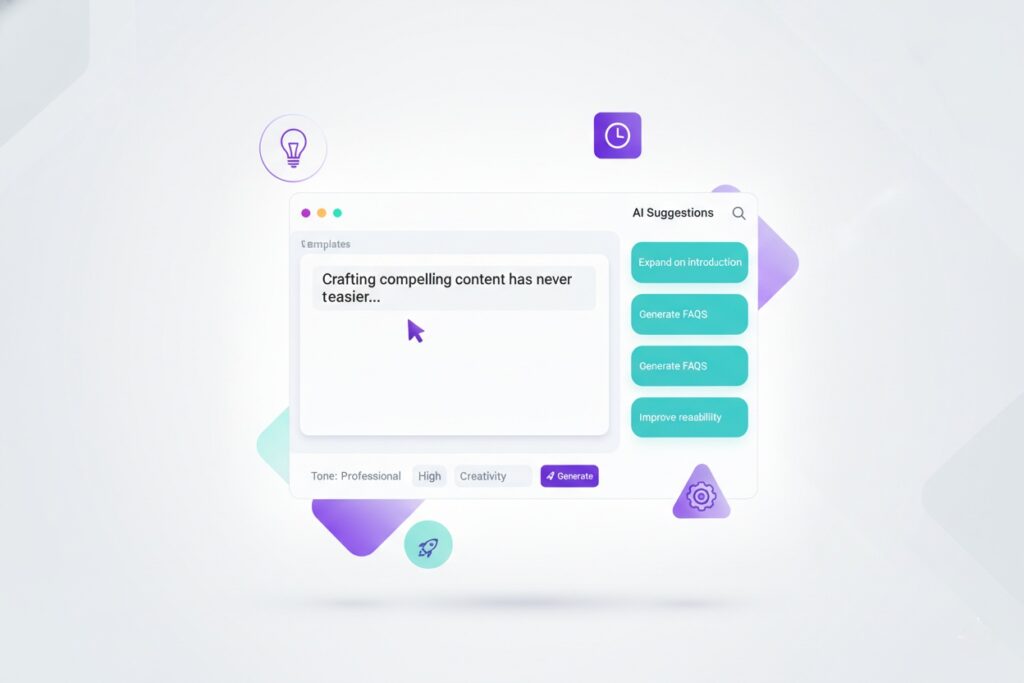
Artificial intelligence is at the core of Taskade’s productivity tools. In this Taskade tutorial section, we will explore these AI-powered features in action. Taskade’s built-in AI assistant can supercharge planning.To unlock the full AI features, start your Taskade workspace here — it takes less than 30 seconds. For example, AI Task Breakdown lets you turn a high-level goal into a full to-do list. Simply type your project description and Taskade’s AI will generate tasks and subtasks automatically. In this Taskade tutorial, we use AI breakdown to save time on planning. Next, AI Planning features help you organize schedules and assign due dates. You can ask Taskade to create a plan for the week or a project timeline, and it will output tasks with dates. This tutorial component demonstrates how AI can draft a schedule or agenda in seconds. Additionally, Taskade offers AI Suggestions. As you write tasks or notes, the AI can suggest next steps, improvements, or even creative ideas. This Taskade tutorial uses suggestions to inspire new tasks or content ideas on the fly. Finally, Smart Workflows include automations and AI Agents. You can set up triggers and actions so Taskade handles repetitive work. For instance, a Taskade automation can move tasks, send notifications, or summarize meeting notes. Following the tutorial style, you might create an AI Agent that automatically updates projects or responds to comments. These AI features – breakdown, planning, suggestions, and automations – make Taskade an intelligent co-worker for your team. By using the Taskade tutorial examples, you can speed up your workflow. In summary, this Taskade tutorial emphasizes using AI to eliminate busywork.
Templates — A Taskade tutorial on Using Pre-Built Systems
- Content Planning: Use Taskade’s content planning templates to outline blog schedules or editorial calendars. In this Taskade tutorial, we demonstrate setting up a content calendar with due dates, responsibilities, and topics. This tutorial shows how to customize it for your content workflow.
- Sprint Management: For software or agile projects, use the Sprint or Agile Board template. It creates “To Do, In Progress, Done” columns and placeholders for goals and backlog. This Taskade tutorial explains how to kick off a new sprint by duplicating a template and setting tasks for the sprint cycle.
- Social Media Calendar: Organize marketing posts with Taskade’s Social Media template. Schedule posts, track platforms, and include copy or images. The Taskade tutorial guides you to assign posts to team members and track publishing dates in a calendar view, keeping social campaigns on track.
- Client Onboarding: Welcome new clients with a structured onboarding checklist template. Assign tasks like introductions, deliverables, and follow-ups using the template. In this Taskade tutorial we show how to use this template to ensure a smooth onboarding, assigning tasks like kickoff calls and documentation to the appropriate team members.
Each template is fully customizable. Following this Taskade tutorial on templates saves setup time and ensures you start with best practices.

Best Practices for Teams
- Clear Task Ownership: Assign each task to one person. The Taskade tutorial stresses specifying who is responsible so nothing falls through the cracks.
- Due Dates and Priorities: Always set realistic deadlines and priority flags. This Taskade tutorial recommends using due dates and colors/tags to keep everyone aware of timelines.
- Use Templates: For recurring workflows, use or create templates instead of starting from scratch. In this tutorial we use templates for content calendars and onboarding. The Taskade tutorial approach saves time and ensures consistency.
- Regular Check-Ins: Schedule daily or weekly stand-up meetings inside Taskade. The Taskade tutorial suggests using the built-in video calls for quick team huddles.
- Real-Time Collaboration: Comment on tasks and use chat to discuss work in context. By following the Taskade tutorial guidance, teams stay aligned and avoid email confusion.
- Organize by Projects and Folders: Keep a clean structure in your workspaces. This Taskade tutorial recommends naming conventions and categories (like project name folders) so anything is easy to find.
- Iterate and Improve: Review completed projects and refine your process. Use feedback to update your Taskade workflows. The Taskade tutorial emphasizes continuous improvement and documenting new insights.
Examples of Real Team Workflows Using This Taskade tutorial
Marketing Campaign Example: A remote marketing team is planning a product launch. In this Taskade tutorial scenario, they create a workspace for the campaign and use a content calendar template to schedule promotions. They set up a board view (To Do, In Progress, Done) and fill it with tasks like “Design brochure” and “Write press release.” Team members @mention each other on relevant tasks and post quick updates in Taskade chat. This Taskade tutorial example illustrates how keeping tasks, chat, and files in one place – a unified workspace – keeps the project on track.
Content Team Example: Imagine a content team brainstorming blog topics. They use Taskade’s mind map to capture ideas together. Then, following this Taskade tutorial style, they turn each idea into a project with sub-tasks (outline, draft, review, publish). This Taskade tutorial guidance includes using comment threads for feedback on drafts. The team assigns due dates and distributes writing tasks, all within Taskade. The result is a smooth process where everyone knows exactly what to do next.
Client Project Example: A freelancer uses Taskade to onboard a new client. She copies a client onboarding template and customizes it. The Taskade tutorial shows her assigning tasks like “Send welcome email” and “Gather requirements,” and sharing the project with the client. The client can check progress and leave comments. By following this Taskade tutorial setup, the freelancer ensures no step is missed during onboarding.
Final Thoughts — Why This Taskade tutorial Helps Teams Work Faster
Taskade provides a unified workspace that solves the problems we discussed. By following this Taskade tutorial, your team can keep all tasks, documents, and conversations in one place. With Taskade, you work faster because there is no need to switch between multiple apps. Communication happens alongside tasks, so nothing gets forgotten. Real-time updates and built-in chat and video calls mean your team stays connected in Taskade. Our Taskade tutorial shows how you can automate routine tasks and leverage AI to eliminate busywork. Templates and view-switching let teams hit the ground running without building systems from scratch. As we saw, Taskade is ideal for remote teams, content workflows, client projects, and general productivity. If you want a simple but powerful platform for collaboration, Taskade is an excellent choice — you can get started for free right here. Give Taskade a try and see how it can transform your team’s productivity. Sign up for Taskade’s free plan and start a project within minutes. Join thousands of teams using Taskade. Ready to work faster and smarter? Taskade is here to help. Based on this Taskade tutorial, you can confidently choose Taskade for your team. In conclusion, this Taskade tutorial should have convinced you of Taskade’s value in streamlining collaboration. This final Taskade tutorial section recaps the benefits and encourages you to act now.
Ready to boost your team’s productivity? Open Taskade now and start building your first workspace.
Want to read more about Taskade? Taskade review